Showing posts with label Firefox add-on. Show all posts

Thursday, 7 February 2013

Batch convert testcases/script issue in selenium IDE 1.10.0

Hi,

After successful start in selenium training. Started to record the script using selenium IDE. Once done with the recording i struggle to convert the recorded script to use it in java eclipse IDE for further modifications. Later i found that there were no batch convert test cases and batch convert test suits present in selenium IDE 1.10.0 version. I was confessed and was looking how can i resolve this issue. After some point of time one of colleague who helped me to solve this issue by adding an plug-in/add-on to the Firefox browser.

Steps to resolve batch convert test cases and batch convert test suits issue:

  1. Open the Firefox browser
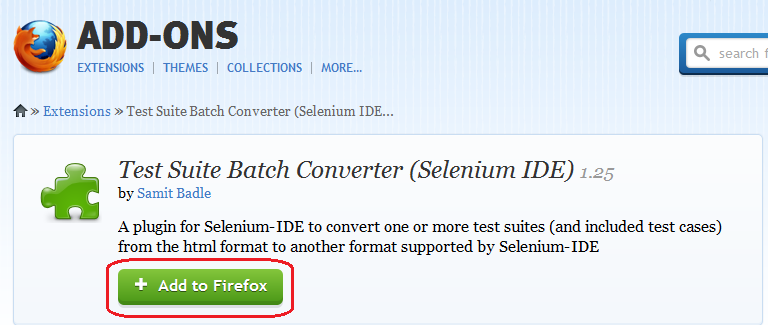
  2. Google Test Suite Batch Converter  or open the https://addons.mozilla.org/en-us/firefox/addon/test-suite-batch-converter-sel/ URL
  3. Click on Add to Firefox button
  4. Click on "Install" button once its enabled
  5. Restart the Firefox
Thanks.

Selenium and Eclipse IDE installation Guide


Hi Folks,

Hope everyone doing great. This is my first blog post and i am not good in english, so please forgive for my poor english.
After having two and half years of experience in manual testing, just planned to learn selenium automation with the help of one of my colleague. Before starting selenium automation i dint aware that selenium IDE is an add-on of firefox browser and which help to record and replay the scripts. So this post will help the beginners to how to install both selenium IDE and eclipse IDE. Eclipse IDE helps the user to edit and make changes in recorded script where as selenium IDE is only used to record and replay the recorded script.

Installation steps for Selenium IDE:
  1. Open the http://seleniumhq.org/ URL in Firefox browser
  2. Click on Downloads tab
  3. Click on the latest version inside selenium IDEImage
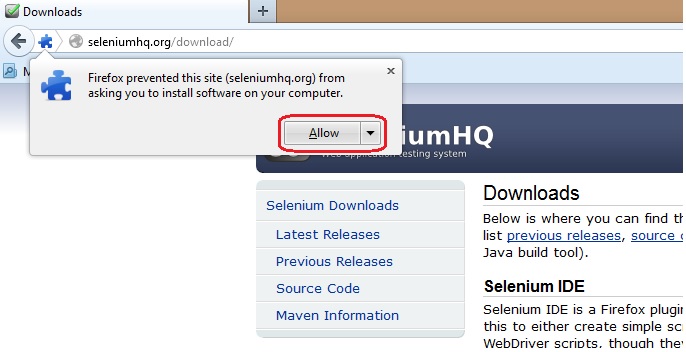
  4. Authentication popup will be populated and click on "Allow" buttonImage
  5. From the installation popup click on "Install" button once its enabledImage
  6. Restart the fire fox browser once the installation is completed.
Installation steps for Eclipse IDE
  1. Open the http://www.eclipse.org/ URL in any browser
  2. Click on Downloads tab
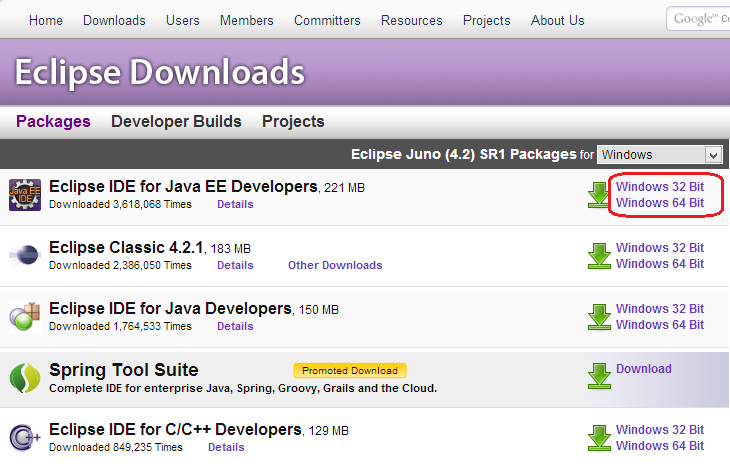
  3. Click on the windows 32 bit/windows 64 bit option against Eclipse IDE for Java EE Developers which ever is suite for your desktopImage
  4. Click on the download icon or download using any other mirror listed below.Image
  5. Open the containing folder where the eclipse IDE were downloaded
  6. Extract the zip folder
  7. Copy and paste the eclipse folder anywhere.
I hope this would help someone who really worried about.

Thanks and will meet you all in my next post.